

SiteAuditLint 0.9.0 is here, and it talks to Claude. This release connects your audits directly to Claude, the AI assistant, so you can stop digging through tables and exporting spreadsheets to find what matters. Now you ask about your crawls in plain English and get answers pulled straight from your own audit data, then turn those answers into real work in a single step.
The whole 0.9.0 release is this one integration. It is the biggest change to how you work with SiteAuditLint since launch, and setup takes about a minute with no config files and no terminal.
Published November 16, 2026. Included in Agency. Works with the Claude Desktop app, and with Claude Code too.
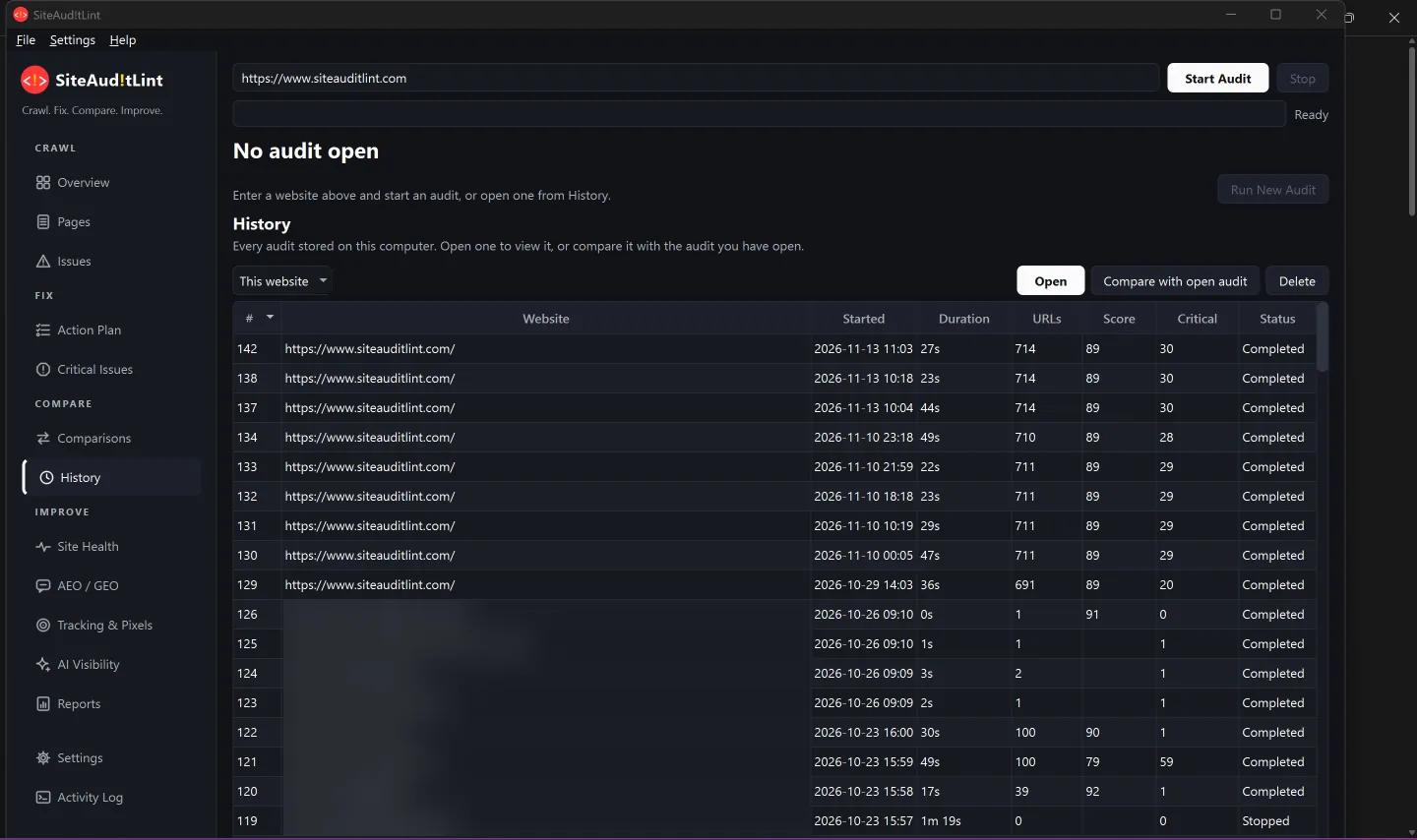
Why this release matters
SiteAuditLint has always done the hard part: crawling your site and surfacing every SEO issue. The missing piece was turning that pile of data into decisions and action. 0.9.0 closes the gap.
By connecting your audits to Claude, you add a layer that reads and reasons over your crawl data. Ask a question, get a precise answer. Ask for a plan, get a prioritized one. Ask for an email, a ticket list, or a redirect map, and it is drafted from your real findings, not generic advice.
Private, local, and read-only
The integration runs entirely on your computer and reads your local audit database. Your audit data is never sent to SiteAuditLint or anyone else. Claude sees only what you ask it to look up, and only ever reads.
Claude reads your audits. It never changes them.
Eight things you can ask
SiteAuditLint gives Claude eight capabilities. You never call them directly, Claude picks the right one from your question, but here is the full set with example prompts.
| Ask Claude | What you get back |
|---|---|
| "List my SiteAuditLint audits." | Every site with pages and health score. |
| "What is the health score for example.com, and the breakdown by category?" | Overall plus per-category scores and issue counts. |
| "List the critical issues on example.com, most impactful first." | A ranked technical SEO issue list. |
| "Which pages on example.com have broken links, and what links to them?" | Broken internal pages and their sources. |
| "Compare my last two audits of example.com." | What changed in score and issues. |
| "Export my latest example.com issues to CSV." | A CSV saved to your computer. |
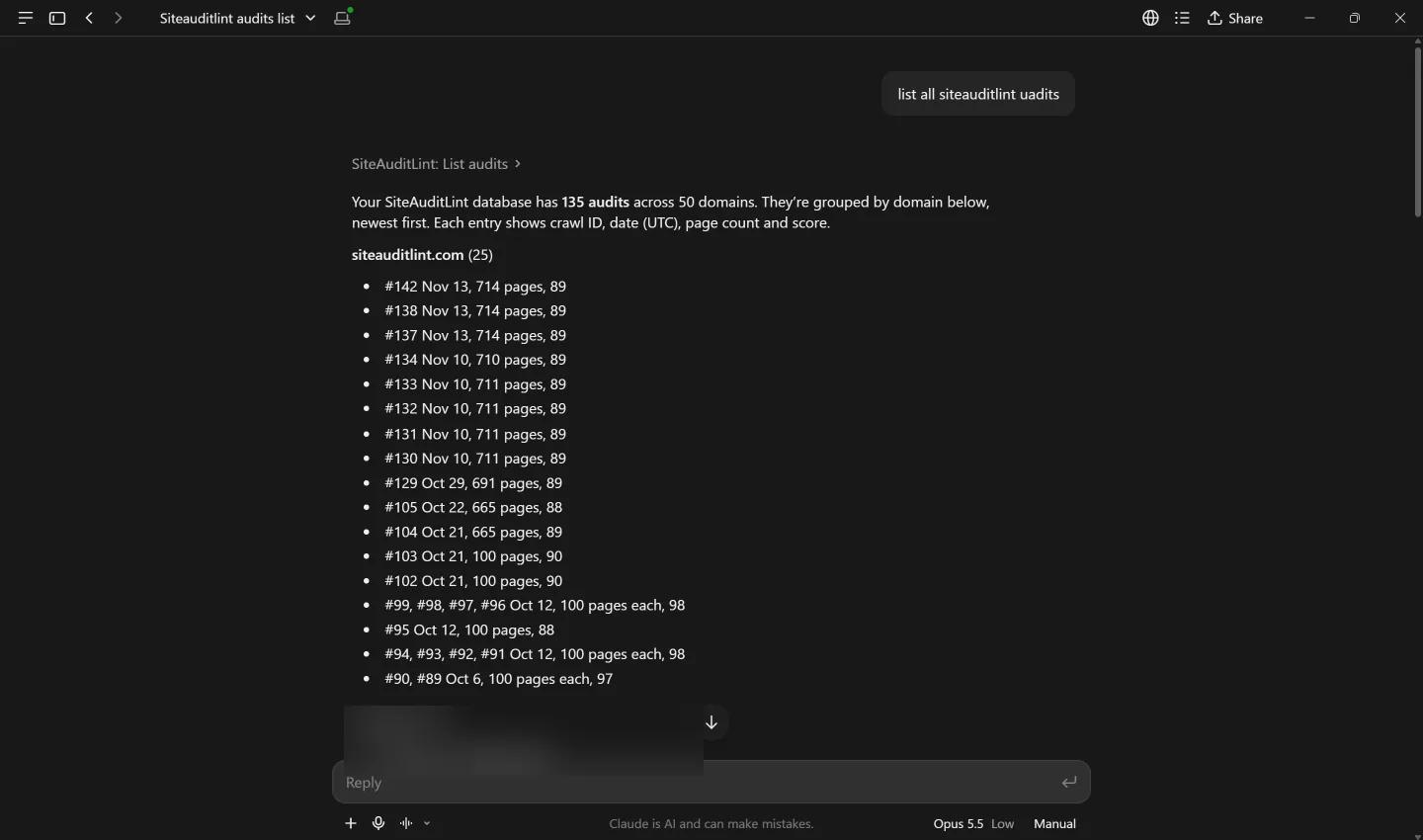
Turn answers into work
This is where it stops being a lookup tool and starts saving real hours. Because Claude reasons over your data, you can chain the answer into the next deliverable in one step.
One audit becomes a sprint backlog, a redirect plan, or a polished client email. In seconds, from your actual findings.
From crawl data to a client email in one step.
How to connect, step by step
You only do this once. The integration stays installed and loads every time Claude starts.
Before you start:
- SiteAuditLint Agency, installed.
- Claude Desktop, the free app from claude.ai/download. Install and sign in once.
- At least one finished audit. Claude reads audits that already exist, so run a crawl in SiteAuditLint first and let it finish.
01Open the connection card
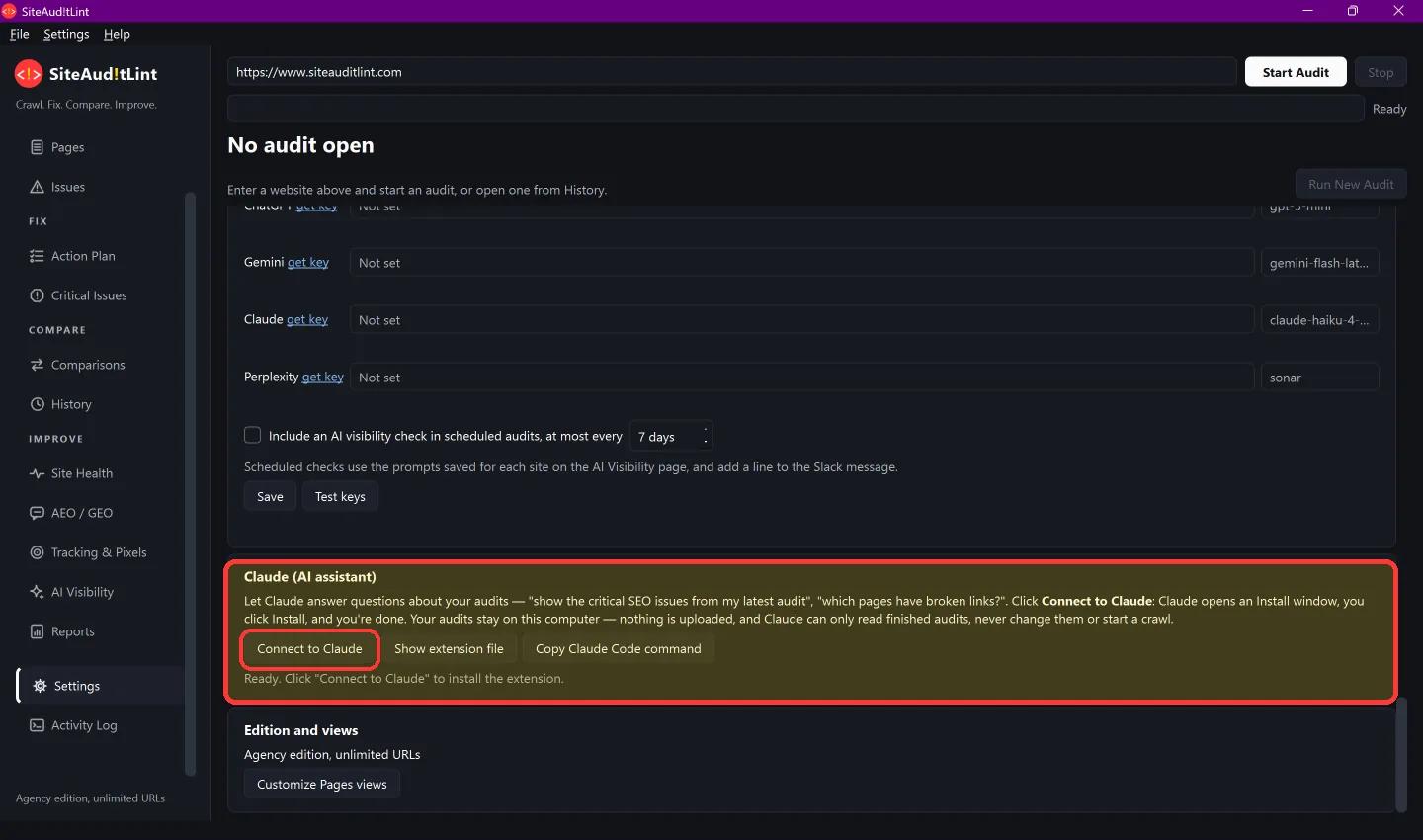
In SiteAuditLint, go to Settings, then Connections, then Claude.
02Connect
Click Connect to Claude. Claude opens an Install window. Click Install. That is the whole setup.
03Or install the extension by hand
Prefer to do it yourself? In SiteAuditLint's Claude card, click Show extension file to reveal siteauditlint.mcpb.
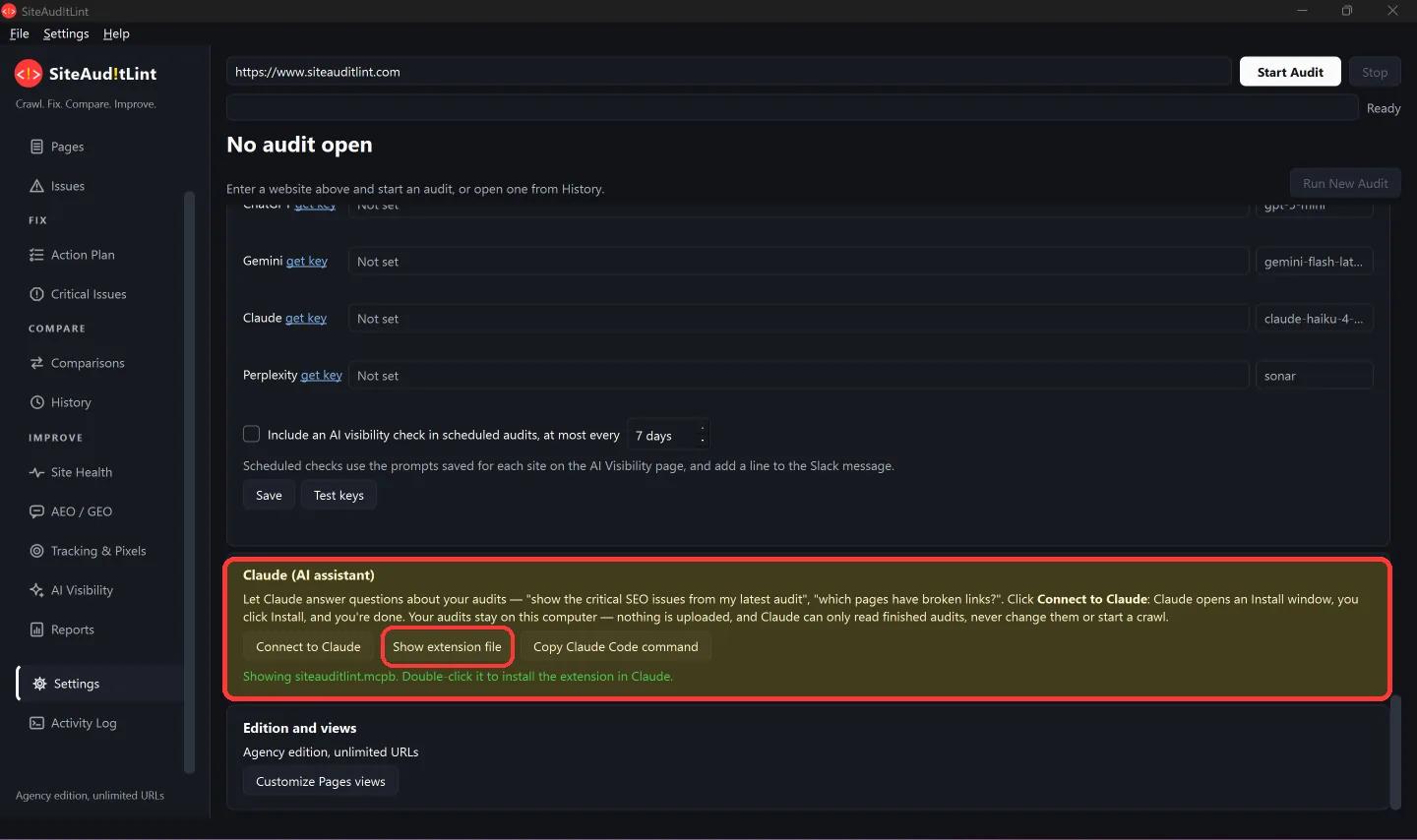
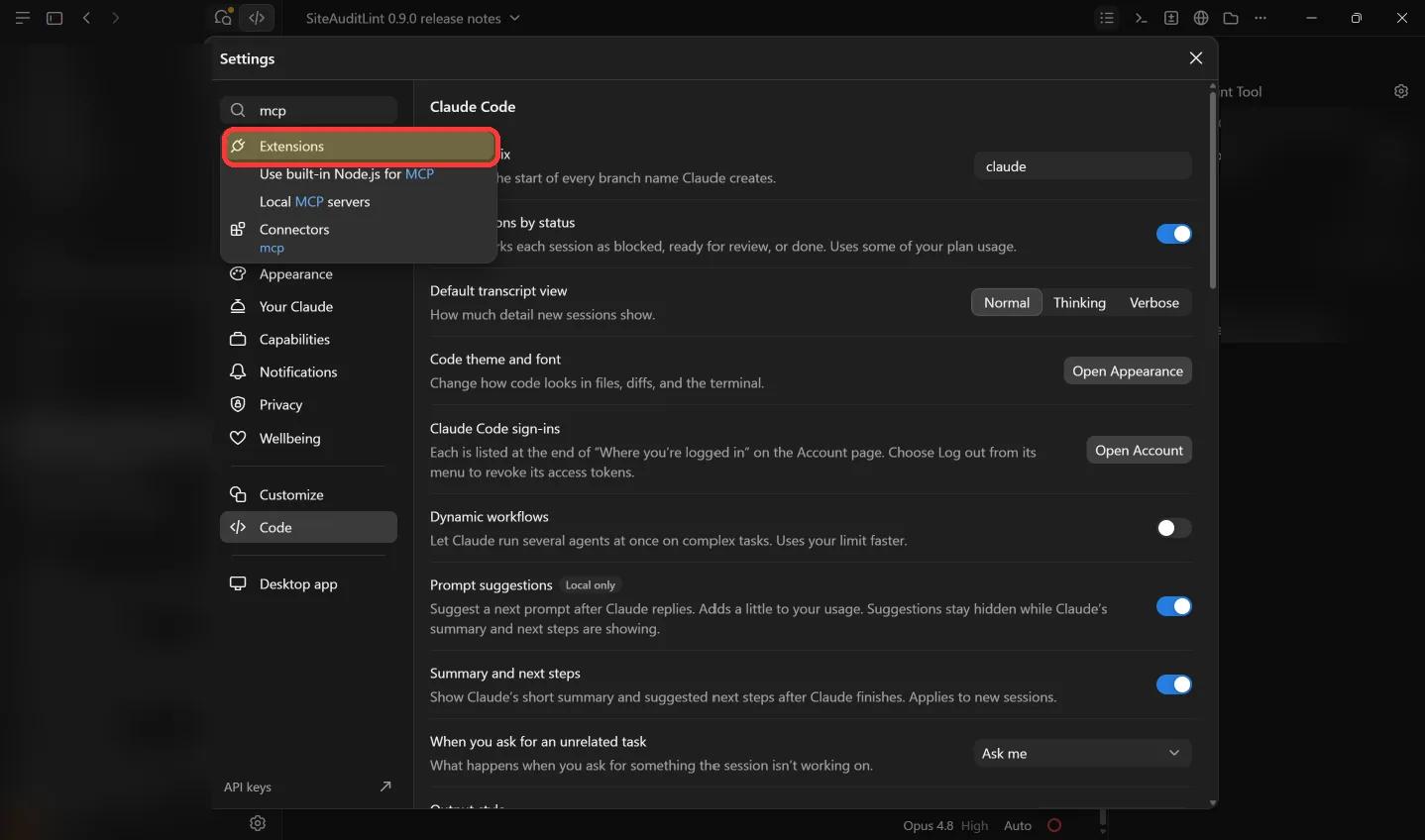
siteauditlint.mcpb in your program folder.In Claude, open Settings and go to Extensions (type "mcp" in the search to find it fast).
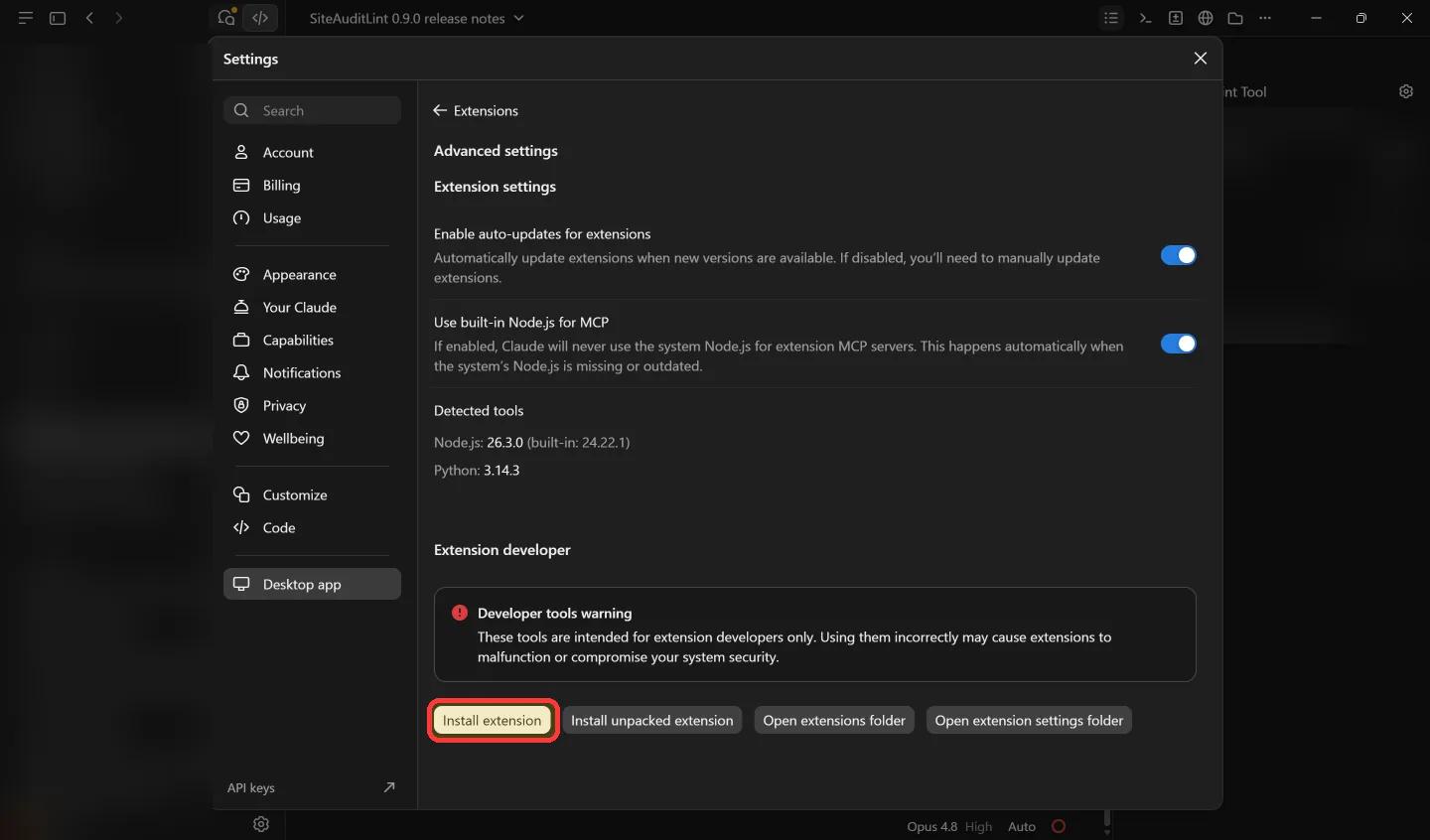
Open Advanced settings and click Install extension.
Choose the siteauditlint.mcpb file and click Install.
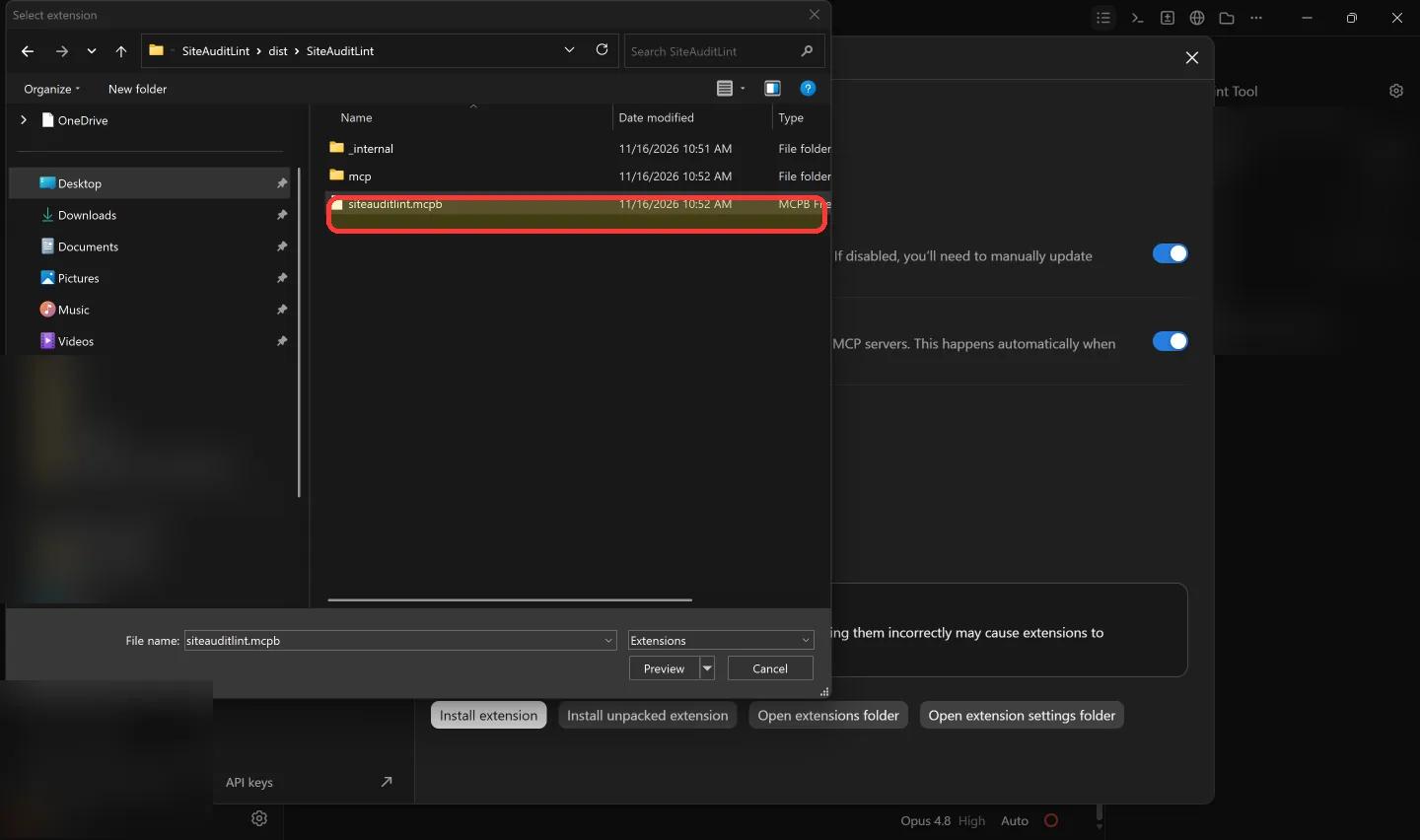
siteauditlint.mcpb and install.Confirm it is connected
Fully quit and reopen Claude so the new extension loads. Right-click its icon in the system tray and choose Quit, because closing the window is not enough. Then start a new chat and ask:
List my SiteAuditLint audits.If it returns your sites and scores, you are done, exactly like the answer near the top of this page. If it instead talks about files, web search, or says it has no SiteAuditLint connector, see Troubleshooting.
Using Claude Code
Prefer the command line? In the same Settings, then Connections, then Claude card, click Copy Claude Code command and paste it into your terminal. You can also add the server to a project's .mcp.json. Claude Code is separate from Claude Desktop, so register it there as well if you use both.
Good to know
Troubleshooting
| Symptom | Fix |
|---|---|
| Claude says "no SiteAuditLint connector," or searches your files instead of answering. | The integration is not loaded in that chat. Run the setup, fully quit and reopen Claude from the tray, then ask again in a new chat. |
| You asked on claude.ai in a web browser. | That cannot run a tool on your computer. Use the Claude Desktop app. |
| You asked Claude Code and it looked at the wrong folder. | Claude Code is separate from Claude Desktop. Use Copy Claude Code command, or add the server to that project's .mcp.json. |
| Installed but still not showing. | In Settings, then Extensions, confirm SiteAuditLint is present and its toggle is on, then restart Claude. If it is missing, reinstall the .mcpb. |
| "No audits found." | Run and finish a crawl in SiteAuditLint first. Claude only sees completed audits. |
Frequently asked questions
Does my audit data get uploaded anywhere?
No. Everything stays on your machine. The integration reads your local audit database and nothing is sent to SiteAuditLint or any third party.
Can Claude start a crawl or change my audits?
No. It is strictly read and export. Crawling and editing stay in the app, under your control.
Which plans include the Claude integration?
The Agency plan.
Does it work with Claude Code?
Yes. Use the Copy Claude Code command button on the connection card, or add the server to a project's .mcp.json.
Do I have to set it up every time?
No. It is a one-time install that loads automatically whenever Claude starts.
What if I run a new crawl later?
Just ask again. Claude always reads your most recent finished audit for a site.
Why does Claude say it cannot find the connector?
The extension is usually not loaded in that chat. Fully quit and reopen Claude from the system tray, then ask again in a new chat.
Related reading
Connect. Ask. Act.
Connect SiteAuditLint to Claude once, ask about your audits in plain English, and turn the answers into finished work.
Your crawl data never leaves your computer, and Claude only ever reads it. Crawling stays in the app, where it belongs.
One audit, eight ways to ask